LESSON-5:
5.1 Detail on Dimension
You now know how to show dimension of your drawing, but there is some thing more you can do to modify the dimension style.
Open Dimension Style Manager and go to Modify or Set a new style.
Line:
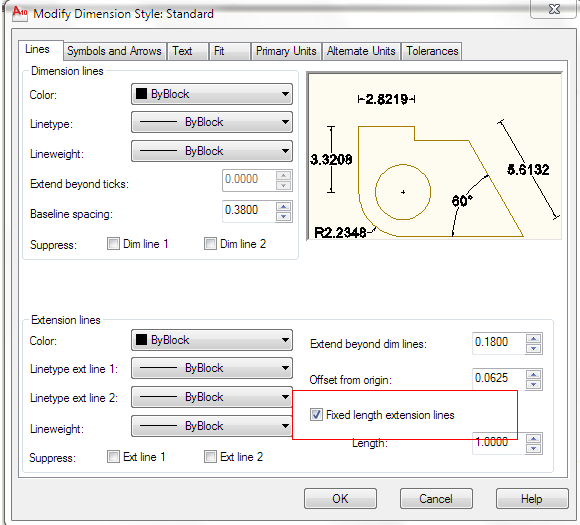
The first tab is called line. here you can see that there are two types of lines: Dimension lines & Extension lines.
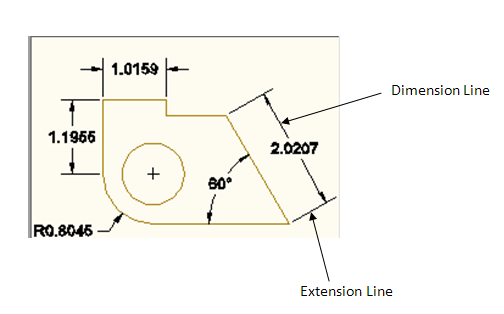
The dimension lines are the one with arrow heads. you can change their color, line type, line weight etc.if you click
the check boxes (Suppress: dim line 1 & dim line 2) the dimension lines will disappear.
The extension lines are the lines extended from the desired point on the object up to the dimension line.Modify them
in the same manner.you can extent these lines beyond the dim. lines; or you can give a fixed lenth by clicking the checkbox.
Symbols & Arrows:
>Change arrow shape or style and also size of arrow in this tab.
>Choose center mark.
>Modify break size, jog dimension etc.
Text:
Select text style, color,height ( or size with respect to your drawing unit).you can also modify text placement and alignment.
Select a reasonable value for text height so that it is consistent with the drawing and easily viewable.
Fit:
This is to fit both text and arrow within the dimension area.Change settings to set up the display as you need.
You can change the placement of text and arrow,scale for dimension to display etc.
Primary units:
Before start drawing, you did a setup for dimension. This time you need to choose the dimension again to display.
In the same manner, select your dimension unit,rounding (if you need) etc.
Alternate units:
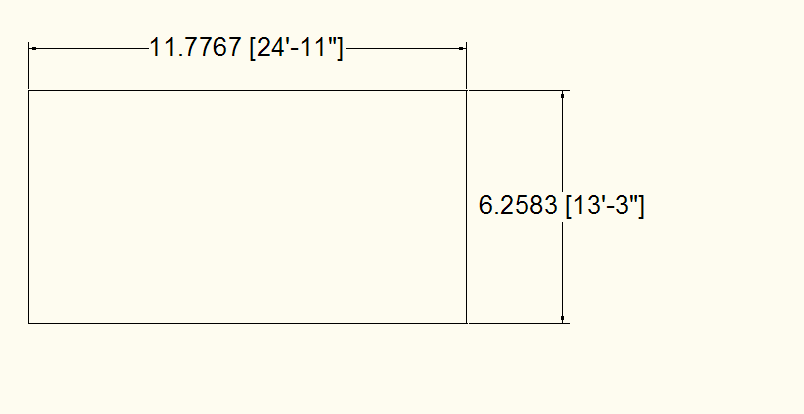
If you need to show the dimensions in more than one unit (actually two), then use this tab to set the other unit.
Tolerance:
Suppose you have drawn a line of 10 feet. but in practical field, it can be 10-0.5 feet or 10+0.5 feet.
to show this tolerance limit in the drawing sheet, you have to use this tab.

